
This video covers everything you need to know about Social Campaigns in KCM. You'll learn how to set up and schedule a campaign, what types of content are available, and how to customize posts before they go out. We'll also walk through the best times and situations to lean on campaigns — whether you're staying consistent between client conversations, building your brand presence, or simply saving time by planning ahead. Prefer to be hands off? We have that covered, too. Check out Automatic Social Media Posting instead.
Use the full screen option in the lower right to enlarge the video.
Smart Campaigns Dashboard
Start a Recommended Smart Campaign
Build Your Own Smart Campaign
Connections
Smart Campaigns Dashboard
First, access your Smart Campaigns from the left-hand navigation menu (Smart Campaigns > Social).
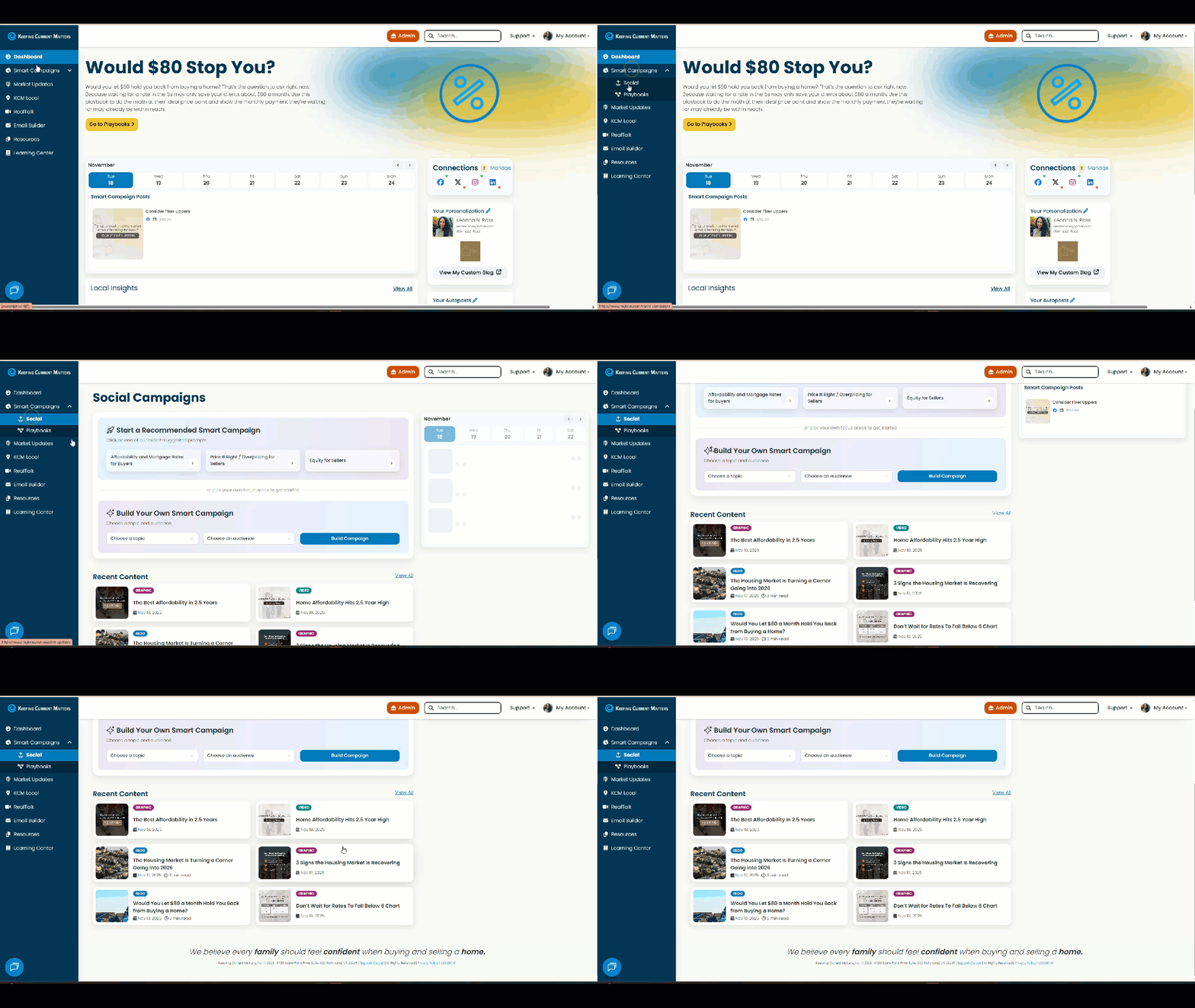
- Here you’ll see the options to either Start a Recommended Smart Campaign OR Build Your Own Smart Campaign.
- On the right-hand side of the page, you can view your recent and upcoming social posts listed by date.
- Recent KCM Content will be at the bottom.
Back To Top
Start a Recommended Smart Campaign
You’ll find all available KCM-curated campaigns listed at the top of the page.
- First, select the campaign that best fits your current focus (affordability, equity, etc.) by clicking on the campaign. NOTE: It will take a few moments to prepare your content.
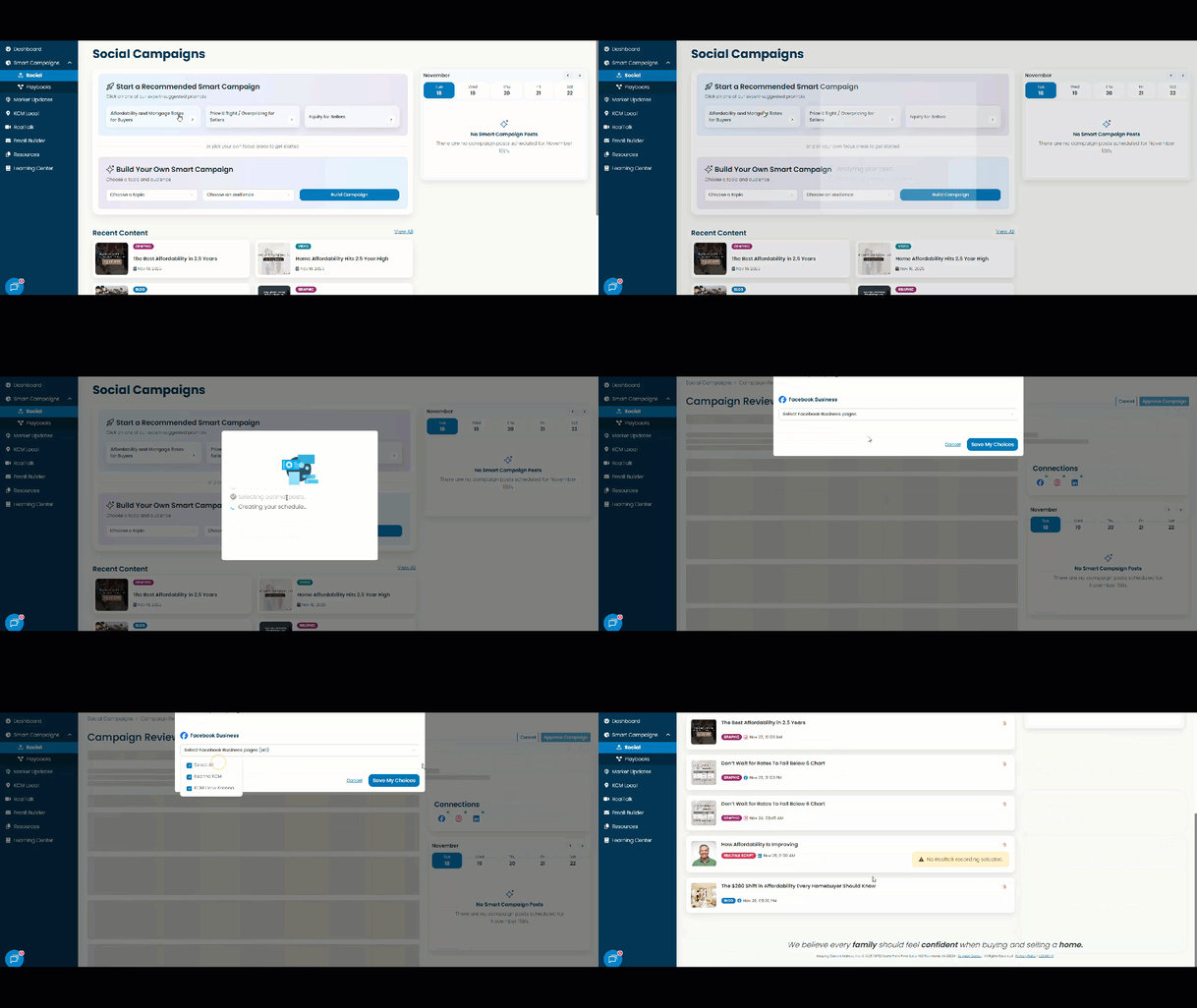
- Now it’s time to review your campaign. You can click on any post to edit captions, adjust the timing, or even add your own call-to-action — perfect if you want to personalize the post.
- You can also duplicate a campaign post to share on another platform, OR remove a recommended post altogether.
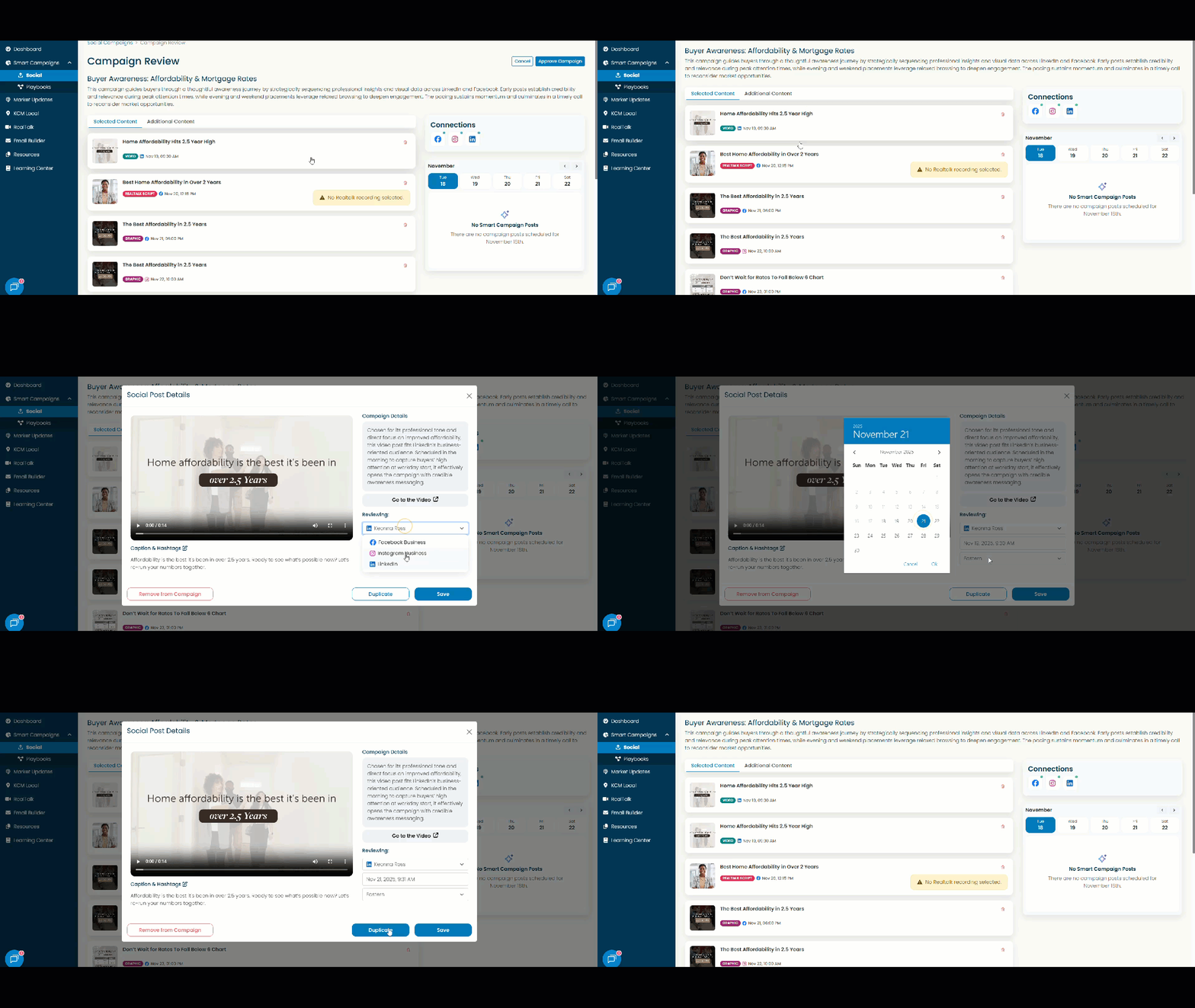
- Want to build out your Smart Campaign even more? No problem! Take a peek at the “Additional Content” tab.
- Once you’re satisfied with your recommended Smart Campaign, click the “Approve Campaign” button in the upper right corner. When scheduling is complete, your page will refresh.
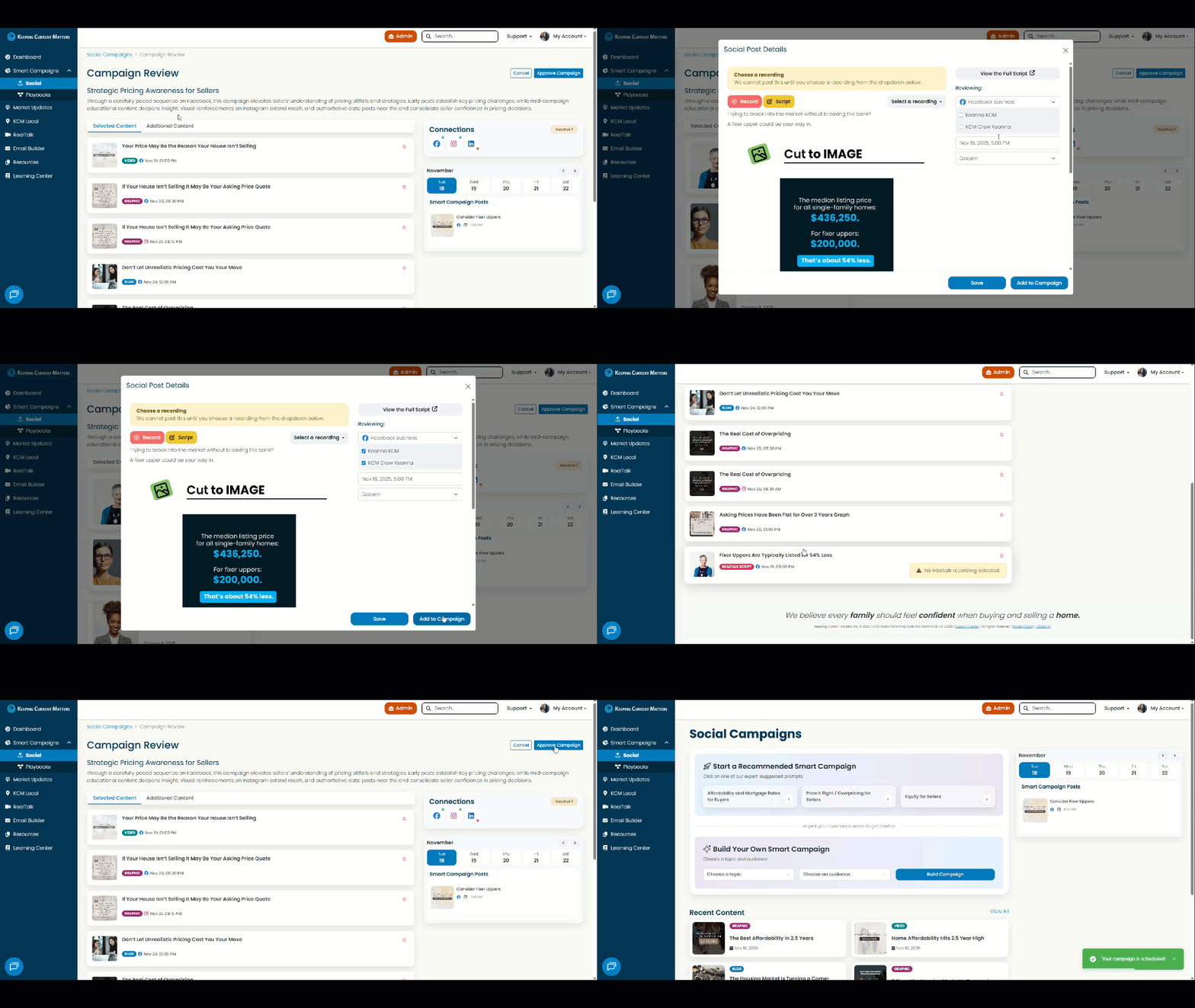
Build Your Own Smart Campaign
When building your own Smart Campaign, KCM will automatically generate a schedule based on your selections. If you already have a theme for the week — like “Affordability” or “Selling Tips” — select topics that support that message. The campaign builder will automatically mix the right post types to fit your focus.
- First, you’ll need to “Choose a topic” (up to 3) and “Choose an audience” (up to 2).
- Once you’ve made your selections, click the “Build Campaign” button. NOTE: It will take a few moments to prepare your Selected Content.
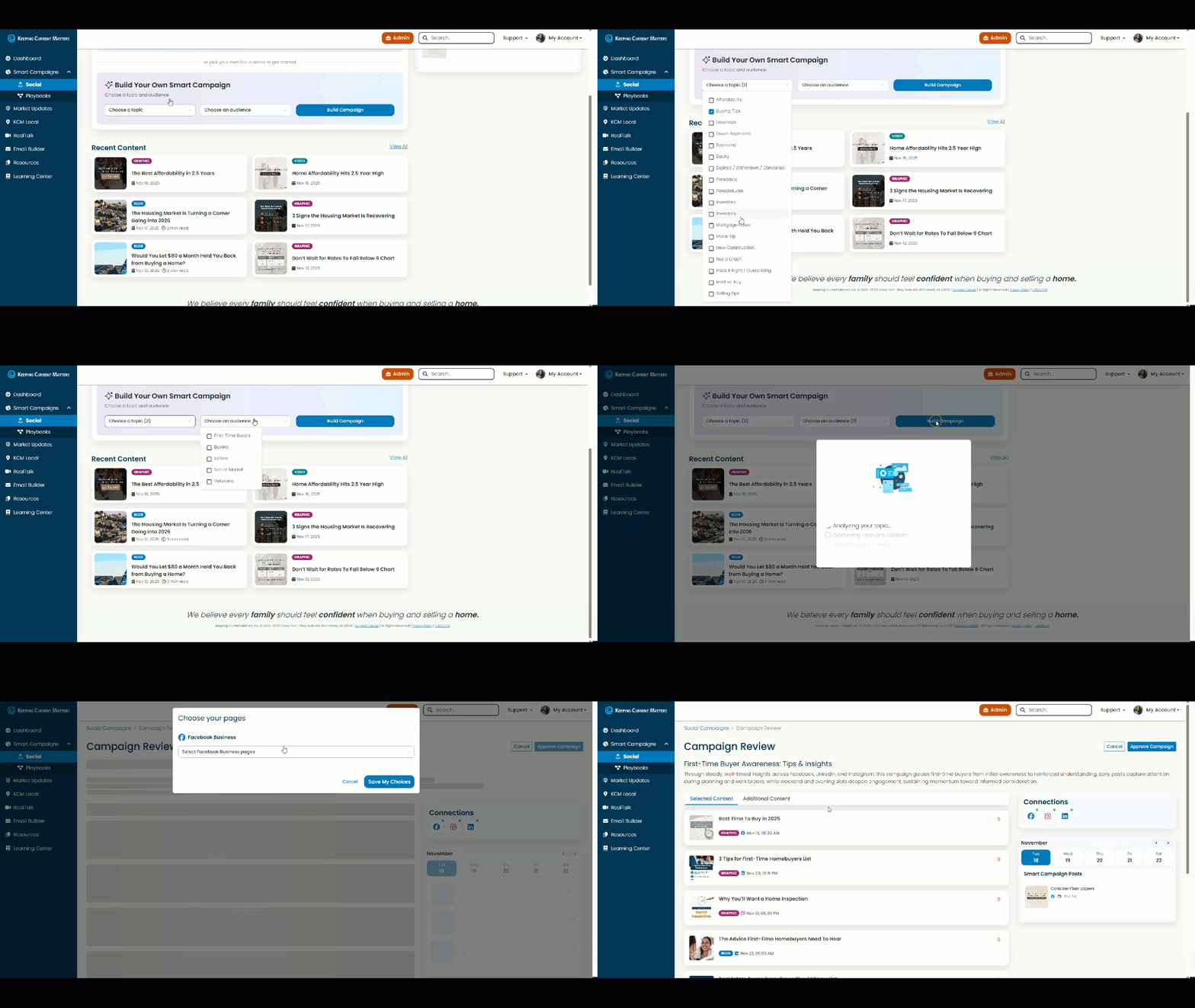
- Now it’s time to review your campaign. You can click on any post to edit captions, adjust the timing, or even add your own call-to-action — perfect if you want to personalize the post.
- You can also duplicate a campaign post to share on another platform, OR remove a post altogether.
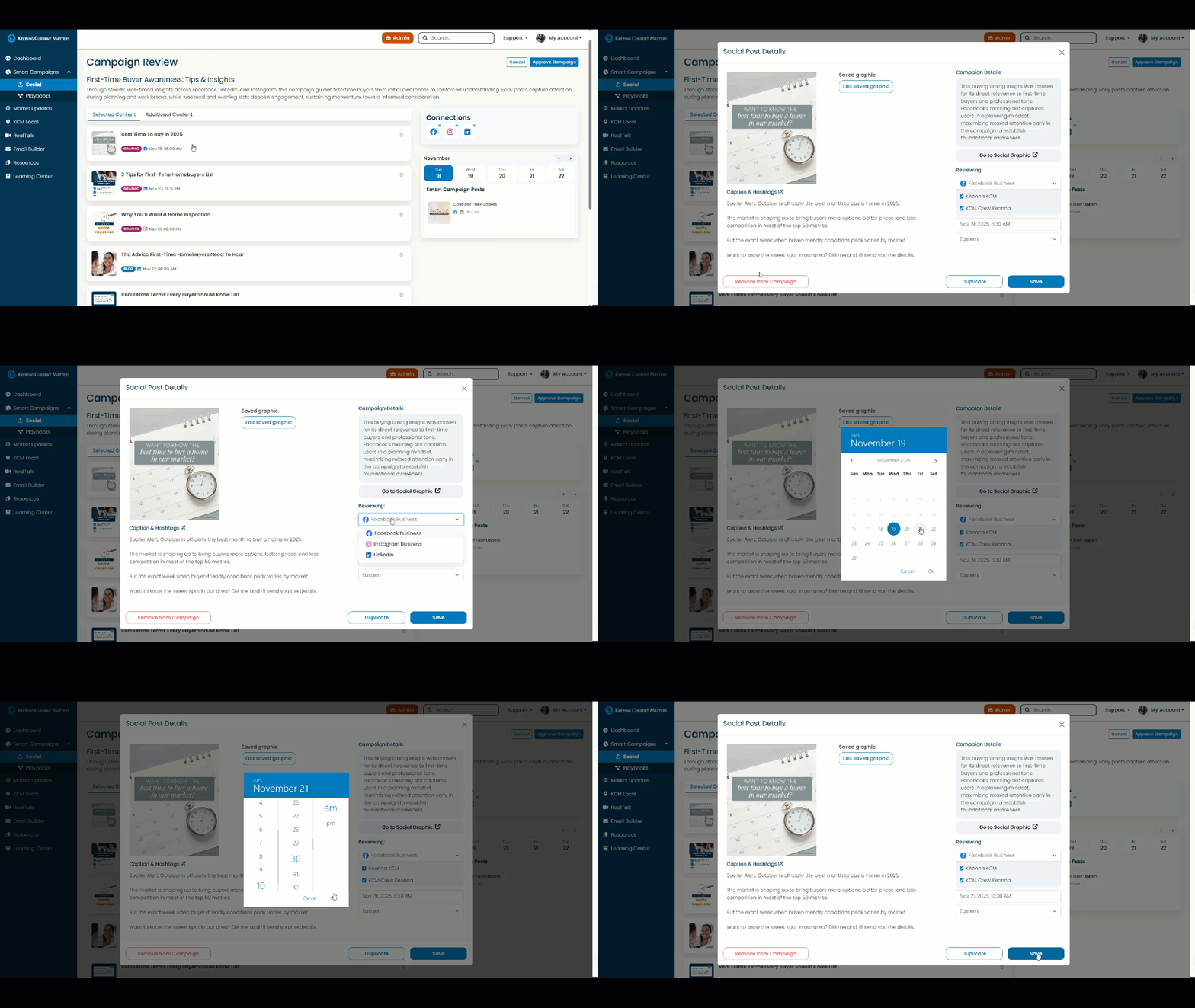
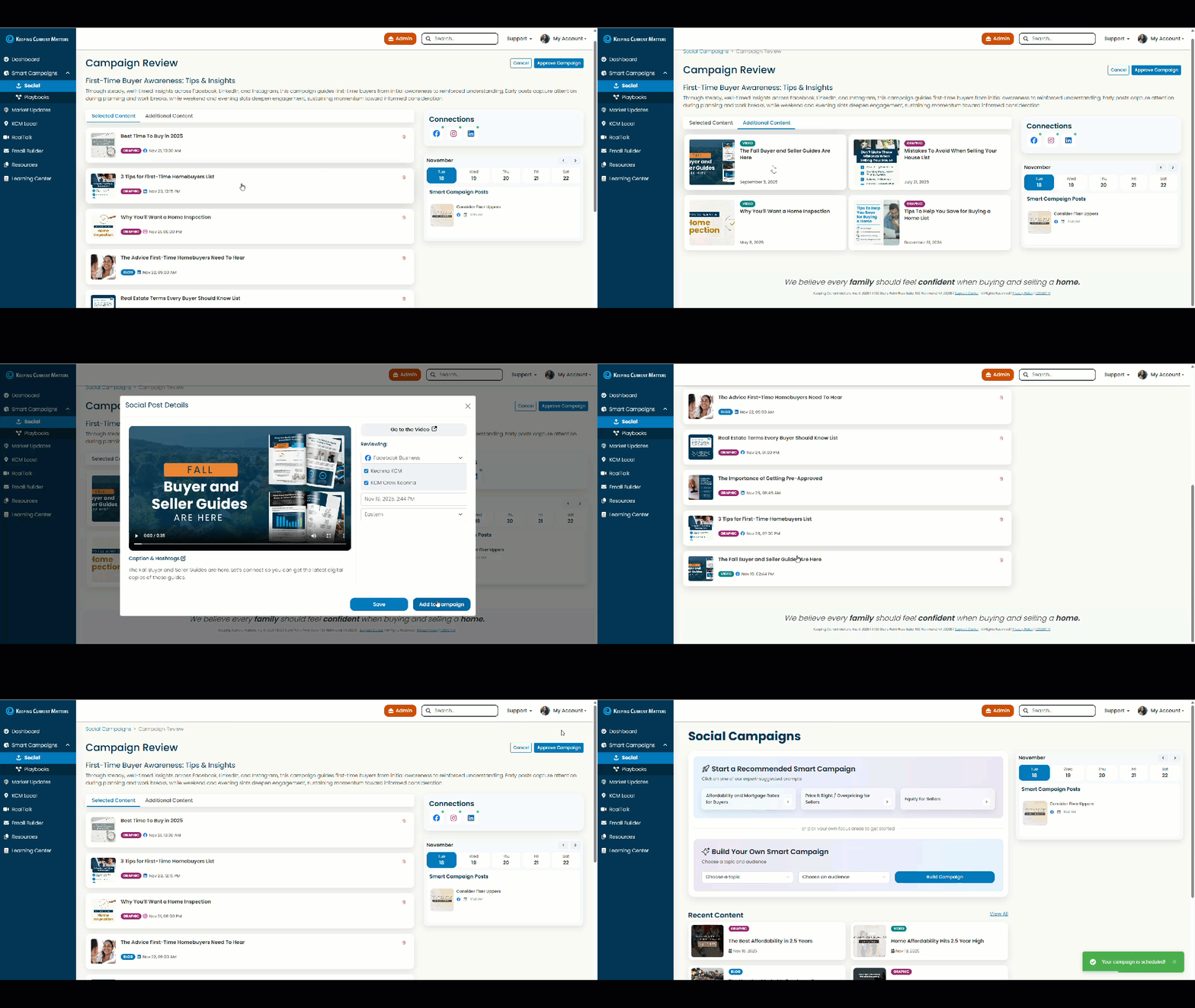
- Want to build out your Smart Campaign even more? No problem! Take a peek at the “Additional Content” tab.
- Once you’re satisfied with your custom Smart Campaign, click the “Approve Campaign” button in the upper right corner. When scheduling is complete, your page will refresh.
Back To Top
Connections
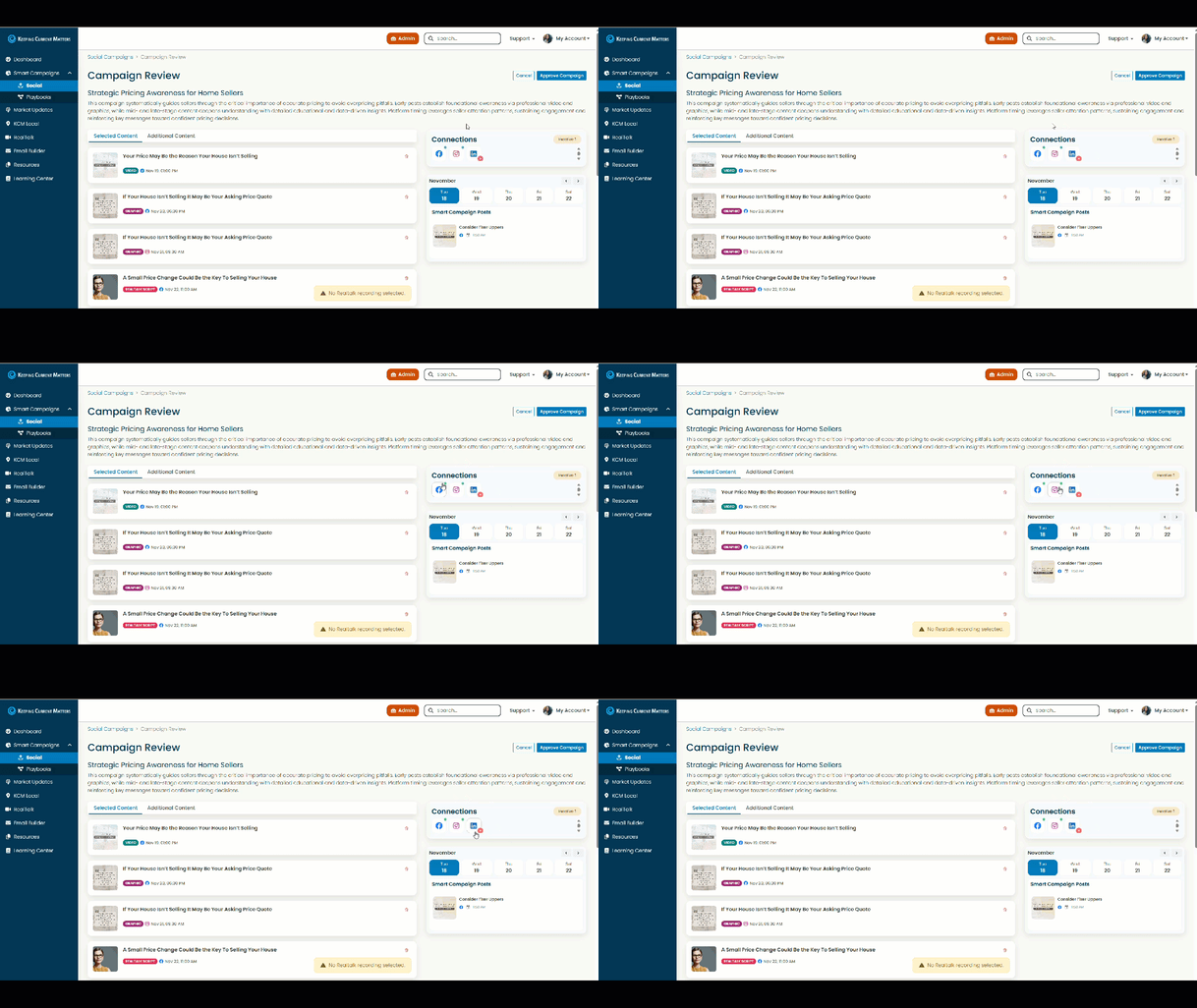
Social media platforms (Facebook, Instagram, LinkedIn) that are properly connected will show a GREEN dot. For those not connected, a RED dot will be displayed.
Questions? Reach out to your KCM Support team — we're here to help!