
KCM’s Plan My Content campaign tool (previously called Smart Campaigns), helps you plan a week of expert social content in minutes. Just choose a recommended topic OR your own topic(s) and audience. We provide all the content for your campaign with a recommended schedule designed to perform across your key social channels. You stay in control of your message. We handle the heavy lifting.
Ten minutes a week is all it takes to plan your content.
|
Looking to browse all content and choose what to post? Once you've found something you like, share now or schedule the post. |
Prefer a more hands-off approach? Check out Automatic Social Media Posting instead. In this posting mode, you create a posting schedule that will run on its own. |
Still unsure which content sharing mode to use? We've got you covered!
Every Way To Share (~3 mins)
Plan My Content
Building Your Week of Posts
Calendar
Plan My Content
Ready to plan ~ 7-10 days' worth of social posting content in minutes?
Plan My Content is available in your Member Area left menu under Content or in Calendar. Once on either of these pages, click the Plan My Content button in the upper-right corner.
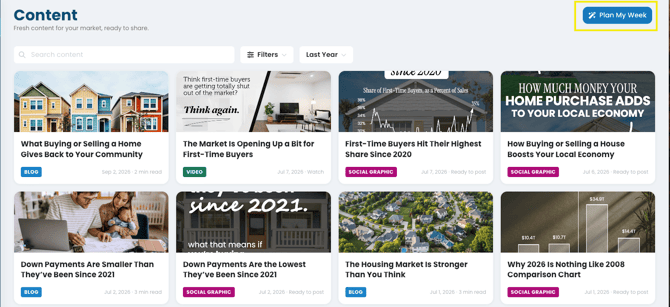
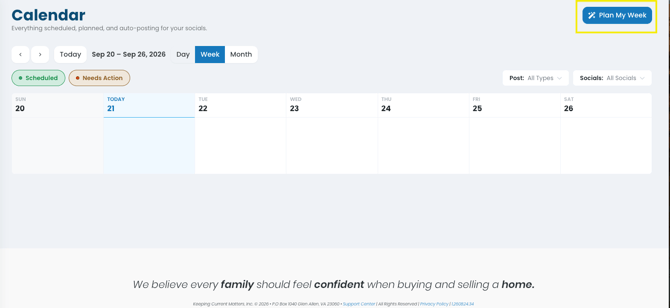
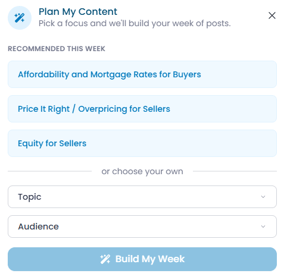
Plan My Content gives you the options to either choose a recommended topic OR choose your own.
Back To Top
Building Your Week of Posts
-
First, select either recommended campaign topic that best fits your current focus or choose your own topic (up to 3), then choose your audience (up to 2).
-
Once you've made your selections, click the Plan My Content button.
NOTE: It will take a few moments to prepare your content.
- Select the social media platform to be used as the default for campaign posts. You can only choose platforms that are successfully connected.
Not seeing the social channels you want to use? Head to Integrations and complete your social media account connections.
- Now it’s time to review your campaign. You can click on any post to edit captions, adjust your branding, tweak the timing, or even add your own call-to-action — perfect if you want to personalize the post.
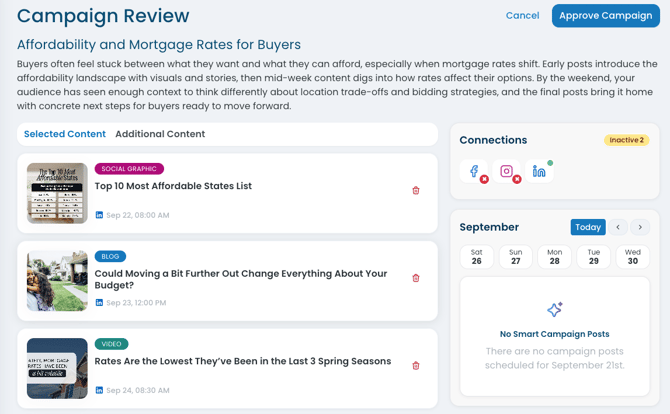
- While editing a post, you can also click "Duplicate" to create another post to share on another social platform. Alternatively, you can remove a recommended post altogether.
- Want to build out your campaign even more? No problem! Take a peek at the Additional Content tab. This will include any RealTalk videos you have recorded (from Local, Standard, or Customized scripts) that can be added to your campaign.
- Remember, Campaign posts require a successful social platform connection. Review your Social connections (Facebook, X, Instagram, LinkedIn, or TikTok). Connected platforms show a GREEN dot. You'll see a RED dot for channels that are not connected.
- To connect or reconnect a social channel, simply click on the social icon and follow the pop-up prompts to accept required permissions.
Having trouble with Social Connections? Read more here or reach out to our team for help.
- Once you’re satisfied with your posts, click the Approve Campaign button in the upper right corner.
- Looking for more detailed guidance? Check out Plan My Content Best Practices.
Calendar
- Check out your Calendar to see everything scheduled, planned, and auto-posting. This is a great place to see everything you have going out on social channels.
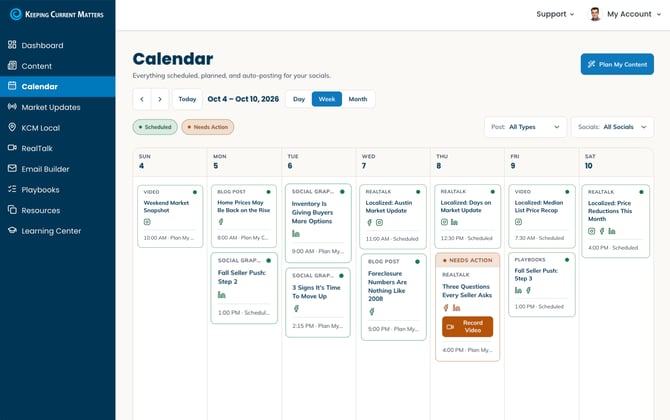
- Edit when posts will go out, remove posts, and quickly see at a glance, if there are any gaps in your content strategy. Use quick action buttons at the top of the Calendar to Review missed posts that need attention or add more content to your calendar using the Plan My Content button.
- For more information, learn about how to manage your Calendar.
Questions? Reach out to your KCM Support team — we're here to help!