
Your Calendar brings your videos, blog posts, social graphics, local posts, and RealTalk videos together in one view, so you can see what's going out and when, adjust your posting plans, and catch anything that didn't publish as expected.
Real estate marketing works best when you post consistently, but consistency is hard to track unless you can see it. With a multi-channel content strategy, managing your content can feel complicated and confusing. Your Calendar makes it easy and simple.
Using your Calendar
Managing your Calendar
Review Missed Posts
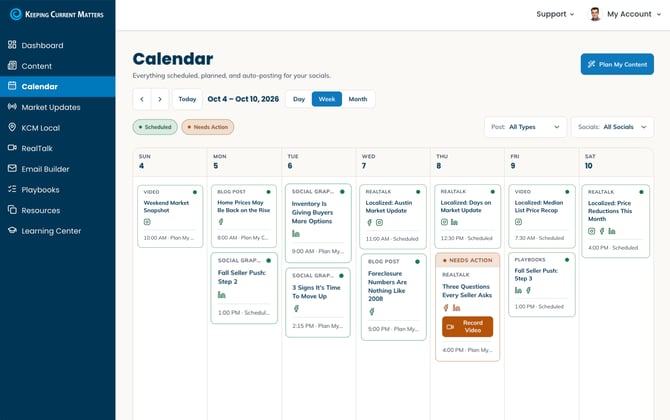
Using your Calendar
Select Day, Week, or Month to change how much of your schedule you see at once. Use the arrows to move between time periods, or the Today button to jump back to the current date.
Each post on your Calendar shows:
- Content type (Video, Blog Post, Social Graphic, or RealTalk), labeled at the top of the post
- Title of the piece
- Social platform icons showing where it's set to post (Facebook, X, Instagram, LinkedIn, or TikTok)
- Time and sharing mode at the bottom of the post (Scheduled, Plan My Content, Auto (for Auto-posting))
Each post also shows one of two statuses:
- Scheduled (green dot): this is set to post automatically. You don't need to do anything.
- Needs Action (orange): something needs your attention before this can go out. For example, a RealTalk that still needs a video recorded shows an orange "Needs Action" banner with a Record Video button right on the card.
_Calendar.png?width=116&height=215&name=Record%20a%20Video)_Calendar.png)
NEEDS ACTION: If you see orange on your calendar, click into that card and finish the step it's asking for. Otherwise, it won't post on schedule.
Managing your Calendar
Each post has two quick actions: click the pencil icon to edit, or the trash can icon to delete.
Editing a post allows you to change the date and time for any scheduled posts. If you need to make additional modifications, like changing the social channel, branding, captions, and hashtags, etc., simply click on the title to create a new post. Once you have made your changes, click to share now or schedule the post.
Don't forget to delete the original post from your calendar.
Review Missed Posts
If any Scheduled or Plan My Content posts were not posted, you will get alerted to take action. Click the Review Missed Posts button.
Review any posts that were missed. You may need to record a RealTalk video and attach your selected video to a post or reconnect your social media channel. 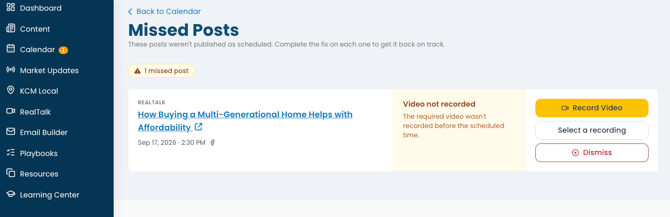
When making these updates, you can reschedule the post for a new date and time. Changed your mind about a post? Click "Dismiss" to remove it from your Missed Posts queue.
Questions? Reach out to your KCM Support team — we're here to help!